Bilingual captions
YouTube Dual Subtitles: How to Show Two Languages (11/2026)
Show two subtitle languages on YouTube. Compare mobile players and desktop extensions, understand auto-translate, and fix missing tracks or timing problems.

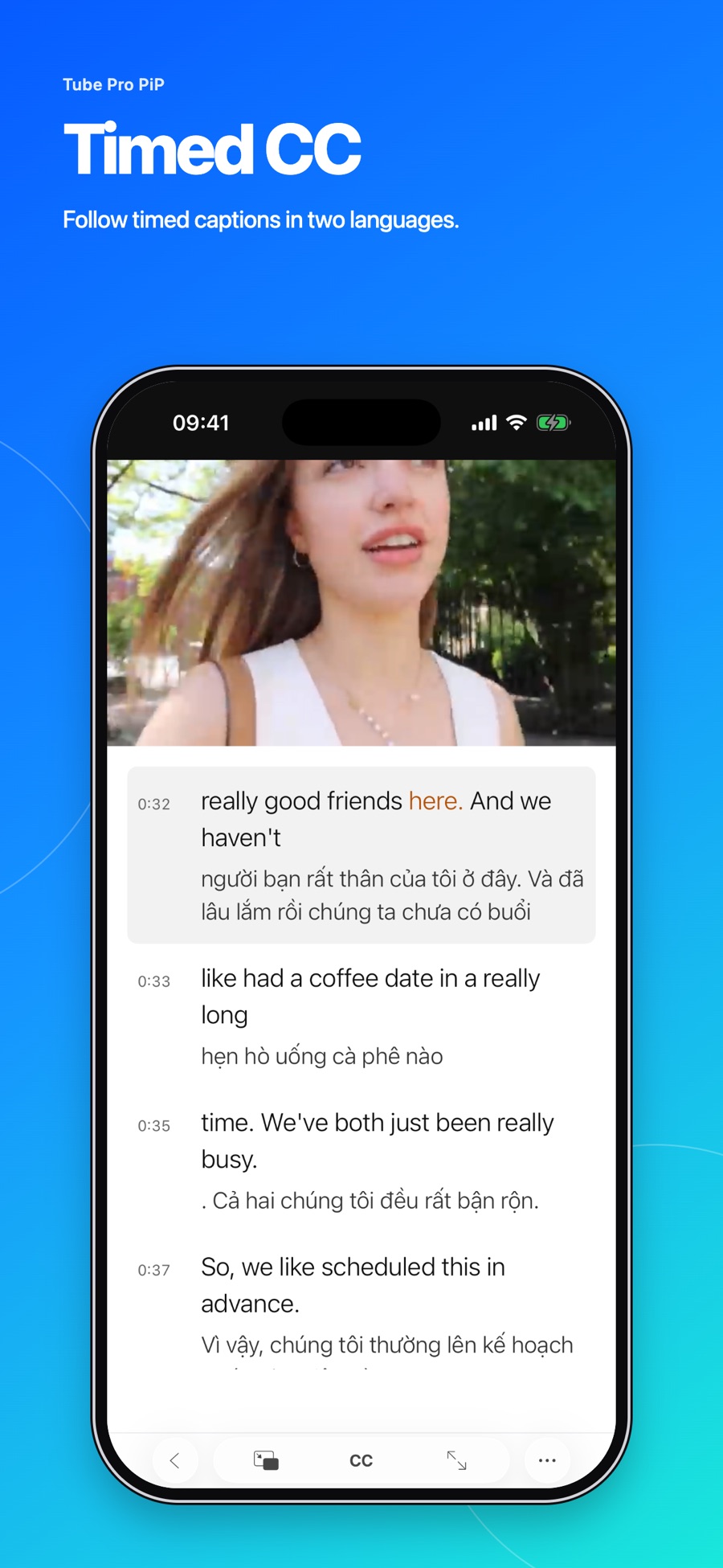
YouTube dual subtitles keep two languages visible together, such as the spoken English and a Vietnamese translation. On iPhone or iPad, you can use a player that supports two caption languages; on a computer, you can use an extension compatible with your browser and YouTube. Start by checking that the video supplies the tracks your chosen tool needs.
The important distinction is translation versus simultaneous display. If selecting a translation makes the original sentence disappear, you have changed the displayed caption language rather than enabled dual subtitles.
Choose a method for your device
| Where you watch | Suitable approach | Check before using it |
|---|---|---|
| iPhone or iPad | A bilingual-caption player, such as Tube Pro PiP | The languages actually available for the video in the app |
| Desktop Chrome | An extension supporting YouTube and dual subtitles | Developer-stated browser, platform and feature compatibility |
| Official YouTube app | A caption language or Auto-translate when offered | Selecting a translation does not itself turn on two-language display |
| Android | An Android-compatible bilingual player or browser solution | Do not assume iPhone settings or desktop extensions apply |
Choose a tool for the device you already use. An extension installed on your computer does not change the separate YouTube app on your phone. Check the developer’s own feature description before expecting the same controls across platforms.
Auto-translate and dual subtitles serve different purposes
YouTube documents selecting a caption language and choosing Auto-translate when that option is available. Its language-selection workflow does not describe enabling two caption tracks together. See YouTube’s caption instructions.
| Display option | What you read | Useful for |
|---|---|---|
| Original captions | The language being spoken | Connecting the audio to its spelling |
| Translated captions | Meaning in your selected language | Following the content in a familiar language |
| Dual subtitles | The original and a second language together | Checking meaning while keeping the original sentence visible |
Here is an original illustration, not a caption taken from a video:
| Original line | Vietnamese line |
|---|---|
| Could you send me the link? | Bạn gửi cho mình đường dẫn được không? |
The practical check is whether the original remains visible when the second language appears. A video may also have two languages embedded directly into the picture. Those words can stay visible, but they are not separate tracks you can manage with the CC button.
Set up bilingual captions on iPhone and iPad
Tube Pro PiP is a YouTube player for iPhone and iPad with ad blocking, background playback and Picture in Picture for supported content. It also offers timed captions and one- or two-language display based on the available tracks.
To get started:
- Open a video in the player and try a short section with clear speech.
- Open the caption controls and inspect the available languages.
- Select the two supported languages you need, such as English and Vietnamese when both are available.
- Watch a complete sentence to confirm that both languages appear, then adjust text size and placement so the words do not cover the content.
Tap a transcript line to replay that moment. Individual word highlighting requires word timing; a track timed only by sentence can still help you return to that sentence. Control names and positions may vary by app version.
For more detail on replaying lines and changing caption appearance, read our Tube Pro PiP bilingual-caption setup guide. These are controls in a separate player, not changes to the official YouTube app’s settings.
Use two subtitle languages on a computer
If you watch YouTube in a desktop browser, choose an extension that supports bilingual subtitles. As one example, Language Reactor’s official listing describes language tools with YouTube and Chrome on Windows or macOS computers. Check the features, languages and requested permissions of the extension you choose.
The general process is to install the extension for its supported browser, open a video on the YouTube website, and select the original and second languages in the extension’s controls. Check a complete sentence after enabling it. Turning on Auto-translate in YouTube’s own menu alone is not the same setup.
On Android, look for a solution explicitly supporting Android and bilingual captions. The Tube Pro PiP steps above are for iPhone/iPad, not an Android installation. A desktop Chrome extension also does not automatically run inside the YouTube mobile app.
Fix missing languages, timing problems and unreadable text
| What happens | What to do |
|---|---|
| No original captions | Try a video with a suitable track; a display tool does not necessarily generate a new transcript |
| English appears but Vietnamese is missing | Check the languages your tool actually offers; choose a video with both tracks if needed |
| The lines do not match the audio | Compare one short sentence, then another well-timed video to help isolate a track-specific issue |
| Individual words are not highlighted | Check word timing separately from whole-line display |
| The text is too small or covers the picture | Adjust size and placement; use one language on a later pass if that makes a small screen easier to read |
Speech-recognition captions can mishear a sentence, and a translation can carry that error forward. YouTube describes automatic-caption limitations, including pronunciation, noise and overlapping speakers. If a line makes little sense, replay the surrounding context rather than assuming both subtitle lines are accurate.
Try a short listening task with both languages
Choose a short explanation of something you actually want to do, such as sending a link. Find one useful sentence, tap its line to hear it again, and identify the part that makes the request. Check the translation, then write a reply in the spoken language.
For the example above, a possible reply is “Sure, I’ll send it now.” This is an original practice suggestion. On a later pass, try one language or switch captions off to see what you understand.
To watch while taking notes, use our iPhone Picture in Picture guide. If unwanted captions keep returning, follow the device-specific auto CC troubleshooting guide.
Frequently asked questions
These answers separate tool compatibility, available caption languages and the controls on each platform.
Does YouTube have a built-in dual-subtitle mode?
YouTube documents choosing a caption language and using Auto-translate when available. That workflow does not describe a simultaneous two-language mode. To keep both languages visible, choose a player or extension that supports bilingual captions.
Can I watch English and Vietnamese subtitles on iPhone?
A player such as Tube Pro PiP supports two caption languages on iPhone and iPad when suitable supported tracks are available. If English or Vietnamese is missing, selecting bilingual display should not be treated as a way to generate the missing track.
Will a Chrome extension add dual subtitles inside the YouTube phone app?
No. An extension operates in its supported browser environment. Installing it on a computer does not add controls inside the separate YouTube mobile app. Choose a method that explicitly supports your device.
Why do two subtitle lines work without individual word highlighting?
Line timing and word timing are different data. Tube Pro PiP highlights individual words only when the corresponding timing is available. Displaying two caption languages does not establish that a video also supports word-level highlighting.