Picture in Picture
A little window, a lot more freedom. Picture in Picture on iPhone.
Keep a video in view while you take notes, reply to a message, or browse. Here’s how Picture in Picture fits into your day.

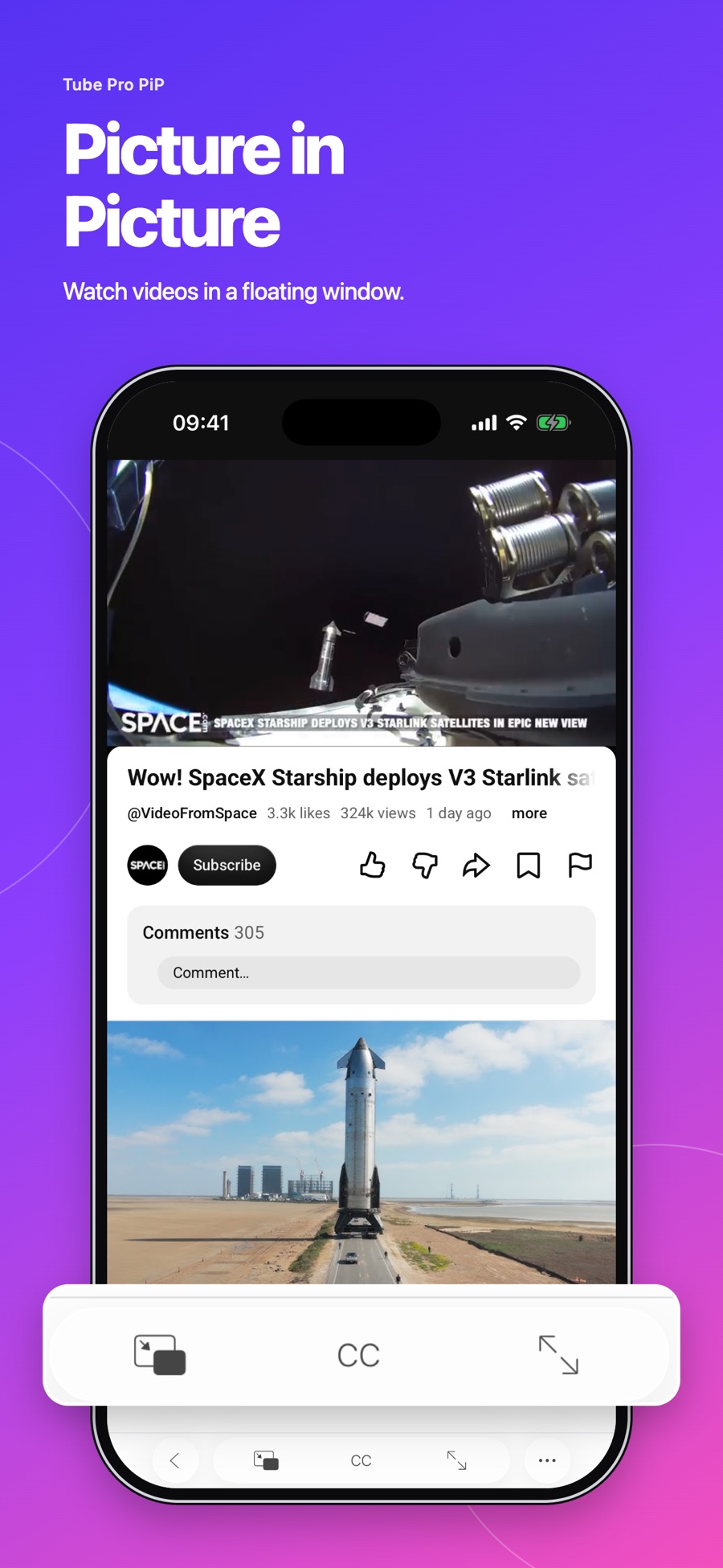
You’re halfway through a video when a message arrives. Or you’re watching a lecture and want to write something down. A floating video gives you a little more room to do both.
Picture in Picture, often shortened to PiP, puts supported video into a small window while you use the rest of your screen. In Tube Pro PiP, it’s one of the ways to keep watching without making the video your only task.
Start with a video you want to keep watching
Open Tube Pro PiP on your iPhone or iPad and find a video. Start playback, then use the Picture in Picture control in the player to move supported video into a floating window.
Once the floating window appears, switch to the app you need. You might open Notes for a lecture, a browser for something mentioned in a tutorial, or Messages for a quick reply.
The exact behavior depends on the video, website, and device. PiP support is not universal, so try another video if the first one cannot enter a floating window.
Choose the right kind of multitasking
A useful second task usually relates to the video. Write down the steps from a tutorial. Make a short list of ingredients while following a recipe. Save a question you want to research after a lecture.
For a story or a detailed explanation, you may prefer to give the video your full attention. PiP is an option for the moments when you need more space, rather than a reason to divide your attention all the time.
Switch to listening when the picture can wait
Some videos are mostly about the audio: an interview, a podcast, or a long talk. Background playback can be a better fit when you no longer need to see the picture. Tube Pro PiP supports background and Lock Screen listening for compatible content.
The distinction is simple: PiP keeps a visible video nearby; background playback lets you focus on the sound. Choose whichever makes sense for the next few minutes.
If the floating window doesn’t appear
Confirm that playback has started and look for the PiP control. Try another supported video to check whether the issue is specific to the content. Also check the current App Store compatibility information and keep the app up to date.
Some websites or videos restrict playback modes. A floating player cannot make every video compatible. When PiP is unavailable, return to the regular player or try background listening if that content supports it.
For more ways to listen, read our guide to background playback.