Background playback
Screen off. Sound on. A calmer way to listen.
Turn a lecture, podcast, or favorite video into a little soundtrack for your day with background and Lock Screen playback.

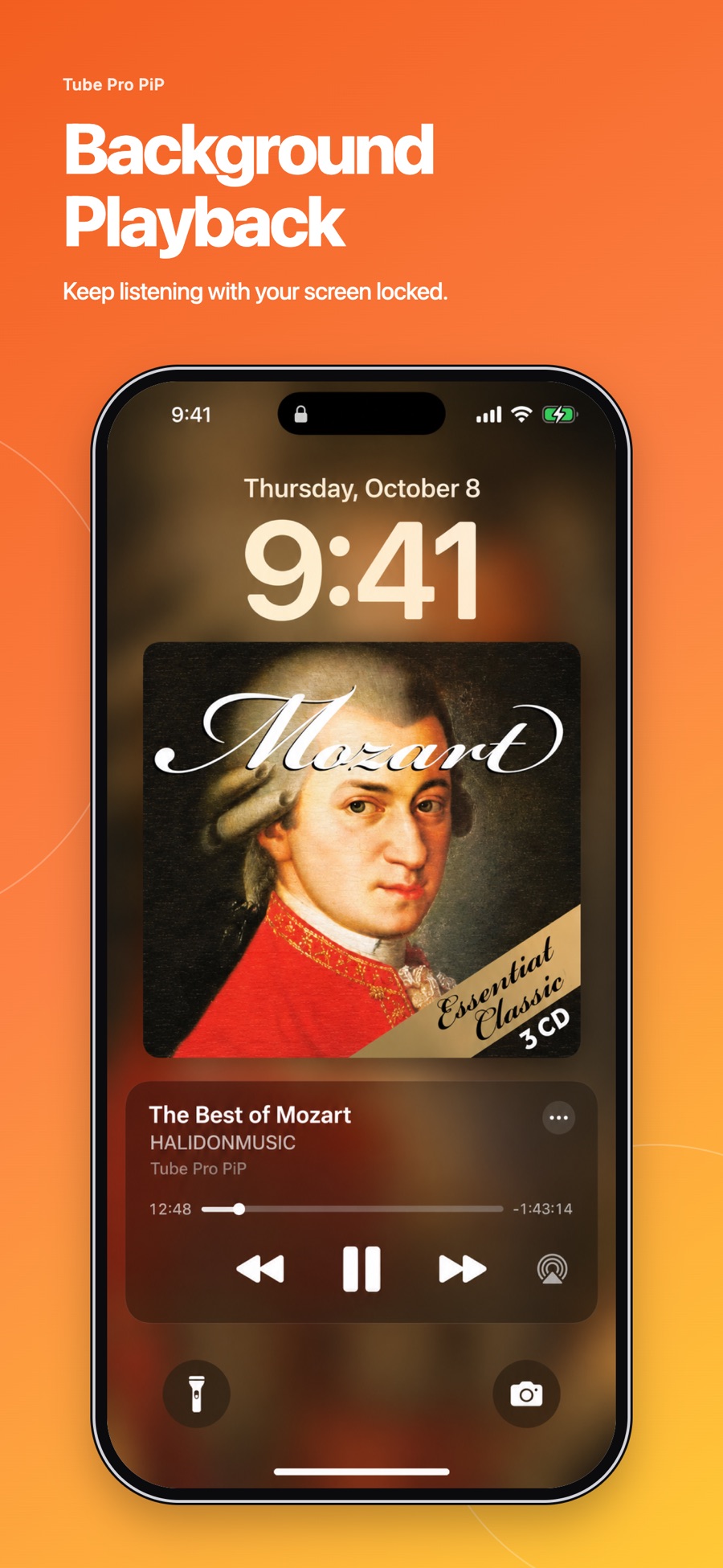
Not every video needs your eyes. An interview can accompany a walk. A lecture can continue while you organize your notes. A playlist can stay with you while your phone rests in your pocket.
Tube Pro PiP offers background and Lock Screen playback for supported videos. That means you can keep listening while you use another app or turn the screen off.
Start listening, then leave the screen behind
Open a video in Tube Pro PiP and start playback. For compatible content, audio can continue when you switch to another app or lock your iPhone or iPad. You can pause and resume from the Lock Screen.
Try this with a video where the spoken explanation or music matters more than the visuals. For a demonstration with important on-screen steps, stay in the regular player or try Picture in Picture instead.
Pick something that suits the moment
A commute might be a good time for an interview. A quiet task at home might pair well with familiar music. When you need to concentrate on reading or writing, silence may be more useful than another voice.
You don’t have to finish everything in one sitting. Save a video to Later, add a favorite you want to return to, or use History to find something you watched before. Tube Pro PiP keeps your saved library on your device.
Give evening listening an ending
If you like listening before bed, use the Sleep Timer. Tube Pro PiP offers 5, 15, 30, and 60 minute presets, plus a custom duration. Playback pauses when the timer ends.
Choose a duration that fits the evening. A timer gives a long video a natural stopping point, even when the original recording runs much longer than you need.
When playback stops unexpectedly
Background playback depends on the video, website, and device. First, return to the player and check that the video still plays there. Then try a different supported video. If you set a Sleep Timer, check whether it has reached the end.
This is online playback, so an interrupted connection can also affect listening. Background playback is not the same as downloading a video for offline use.
The current App Store listing has compatibility details and release notes. Some content may restrict background playback even when other videos work normally.