Captions
How to Turn Off Auto CC on YouTube (11/2026)
Stop YouTube captions from turning on automatically. Check iPhone, Android, desktop and Show when muted settings, plus captions that CC cannot hide.

To turn off auto CC on YouTube, switch CC off in the video player, then check the caption defaults on the device where captions keep returning. If it happens only when you mute a video, turn off Show when muted in the mobile player’s caption menu. One desktop setting should not be treated as a permanent fix for every phone, browser and video.
This guide focuses on unwanted automatic display. For caption languages, appearance and a practice player, open our complete YouTube CC guide.
Choose the right setting first
| What you notice | What to check |
|---|---|
| Captions are showing on the current video | The player’s CC button |
| Captions return on iPhone or iPad | Closed Captions + SDH in device accessibility settings |
| Captions return on Android | Show captions in YouTube’s caption settings |
| Captions appear when you mute the video | Show when muted in the mobile caption menu |
| A separate text box stays after CC is off | Browser or device Live Caption |
| The same words remain fixed inside the picture | Text embedded by the creator |
“Auto CC” can also mean an auto-generated caption track. YouTube can create those tracks with speech recognition; turning off their display is different from preventing their creation. This article is for viewers, not for deleting captions from a channel. See YouTube’s automatic-caption explanation.
Turn off automatic captions on iPhone and iPad
Start with the current video: tap the player to reveal the controls, then tap CC to turn captions off.
For the device’s default preference, open Settings → Accessibility → Subtitles & Captioning and turn Closed Captions + SDH off if you do not want that default. Menu names depend on your device language. This changes an accessibility preference used beyond YouTube; it does not remove available subtitle tracks.
Next, check the case that often looks like the setting has reset:
- Open a YouTube video and reveal its controls.
- Open Settings → Captions in the player.
- If Show when muted is enabled, switch it off.
Try another captioned video with sound on, then mute it. This helps you tell whether the unwanted captions are tied to muting or appear regardless. YouTube documents both the iOS default and the mobile mute option in its iPhone/iPad caption instructions.
Turn off automatic captions on Android
Use the video’s CC button to hide the current captions. Then open your YouTube profile menu, go to Settings → Captions, and turn Show captions off. Check Show when muted separately under the video’s Settings → Captions if captions return when audio is muted.
These controls address different triggers: the default caption preference and mute-triggered display. Turning off one does not establish that the other is off. Labels and menu placement can vary; follow the Android-specific YouTube instructions, rather than the iPhone settings path.
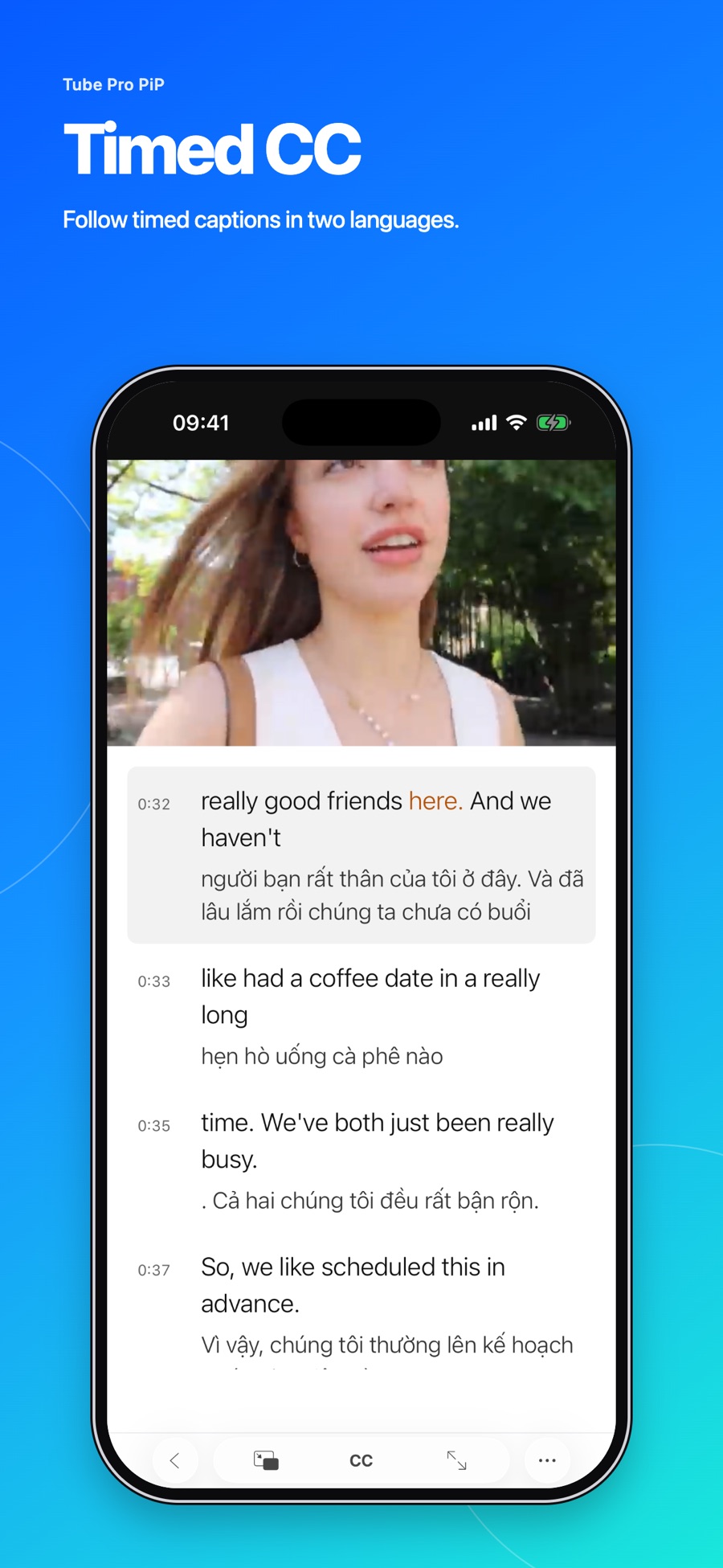
If you also watch on iPhone or iPad, Tube Pro PiP is a separate YouTube player with ad blocking, background playback and Picture in Picture for supported videos. Its bilingual caption tools depend on available tracks. The app does not change caption preferences in the official YouTube app.
Turn off CC on desktop and handle older account instructions
Click CC in the YouTube video player to hide available captions. YouTube’s current computer guide documents this player control.
You may encounter older guides showing Settings → Playback and performance → Always show captions, with Include auto-generated captions (when available) below it. If those options are actually present in your account, review them there. Turning off only the auto-generated option is not the same as disabling every kind of caption.
The current official computer help page does not list those two account checkboxes. If you cannot find them, use the player control and continue to the checks below. Do not assume your account is broken, or that switching an option on desktop must change every mobile device.
If captions still appear after CC is off
First, determine where the text comes from:
- A separate movable box: check Live Caption. On Chrome for Windows or Mac, open Settings → Accessibility → Live Caption and turn it off; other platforms can have an extra Captions menu. See Chrome’s platform-specific steps.
- A device overlay on Android: search device Settings for Live Caption and turn it off if enabled. Availability and controls differ by manufacturer; use Android’s Live Caption guide.
- An iPhone Live Captions window: check Settings → Accessibility → Live Captions on supported devices. This is separate from YouTube CC and Closed Captions + SDH. See Apple’s Live Captions guide.
- Words inside the actual video image: the creator may have embedded them. CC cannot erase that text; look for another version of the video if available.
Then compare two captioned videos on the same device. Note whether captions return on every video, only after muting, or only in one browser. That gives a more useful description of the problem than “CC won’t stay off.” If the documented control is missing or does not respond, update the app and use YouTube’s Help & feedback with the device, app version and the behavior you observed. A reset or reinstall is not a guaranteed solution.
Frequently asked questions
The answers below distinguish the viewer’s display preferences from caption generation and device overlays. To practice the ordinary CC control, return to the caption simulator and full guide.
Can I turn off YouTube auto CC permanently on every device?
There is no single switch documented to cover every device and caption source. Turn off CC in the player, check your device's caption defaults and Show when muted, and handle any separate Live Caption overlay where it is generated.
Does turning off CC stop YouTube from generating captions?
No. The viewer's CC button controls whether available captions are displayed. It does not delete a caption track or change a creator's automatic-caption settings.
Where did Always show captions and Include auto-generated captions go?
Older instructions may show these under Playback and performance. The current YouTube computer help page does not list them. If your account still offers them, review them there; otherwise use the player control and the device-specific checks in this guide.
Why is text still visible after I turn CC off?
A browser or device Live Caption feature may be drawing a separate text box, or the creator may have embedded text directly in the video. YouTube CC cannot hide text that is part of the video image.