Captions
YouTube Closed Captions (CC): Interactive Guide & Simulator
Enable, disable, customize and manage YouTube captions on desktop, iPhone, iPad and Android. Practice with a live caption simulator.

YouTube CC interactive simulator
Try the player icons or press C. Practice controls only: this demo does not change YouTube or your account settings.
YouTube Closed Captioning Demo
Testing line: “Learn how to master YouTube CC effortlessly.”Shortcut tip: press C to toggle captions and B to cycle background shading while the player is focused.
[Mobile Preview] Closed Captions are active
How to Turn Off Captions on YouTube Mobile (iOS & Android)
TechTips Official · 240K views · Illustrative demo metadata
Captions turned on
YouTube Settings → Playback and Performance
Practice account caption defaults
These switches only change this mockup. See the guide below for desktop and iPhone/iPad settings.
Learn how to enable, disable, customize, and manage YouTube captions across desktop and mobile devices using the interactive player simulator above. Try the Desktop Player, Mobile App, and Auto-CC Account Settings tabs, then follow the complete accessibility guide below.
The simulator uses sample text, not a live YouTube video. Its four languages are English, Japanese, Spanish, and Vietnamese. Language changes display prepared examples; they do not translate a real video. The mobile title, creator, views and likes are illustrative demo details.
Desktop guide: web browser
- Locate the CC icon. Hover over the bottom right of the video player window to reveal its controls. If captions are available, the CC button appears there.
- Click CC to toggle. A red line under the CC icon in the reference player indicates captions are on. Click again to turn them off. In this simulator, the CC status also appears below the player.
- Customize styling with the gear icon. On YouTube, open Settings → Subtitles/CC → Options to adjust font size, color, and background opacity. In this demo, the gear opens the caption controls directly.
Try playing or pausing the mockup, selecting another subtitle language, changing the font size from 50% to 200%, and choosing white, yellow, green, or cyan text. The background-opacity slider lets you compare readability against the dark scene.
Keyboard shortcuts: focus the demo player and press C to toggle captions. Press B to cycle the demo’s background shading. C is a documented YouTube shortcut; B is offered here as a simulation control, without claiming universal support on YouTube. Typing inside fields will not toggle captions.
Mobile guide: iPhone, iPad and Android
- Tap the video screen. Tap the active player to reveal its on-screen controls.
- Tap the CC icon. Look for CC in the player controls, commonly near the top right beside Settings. Tap it to turn available captions on or off. Control positions can vary by app version.
- Confirm the status. A notification such as “Captions turned on” or “Captions turned off” may confirm the change. In the mobile simulator, the caption and status below the phone update immediately.
If CC is absent, captions may not be available for that video. On iPhone and iPad, YouTube documents caption appearance under iOS Settings → Accessibility → Subtitles & Captioning → Style. Android uses its own device and app caption settings; do not follow the iOS settings path on Android.
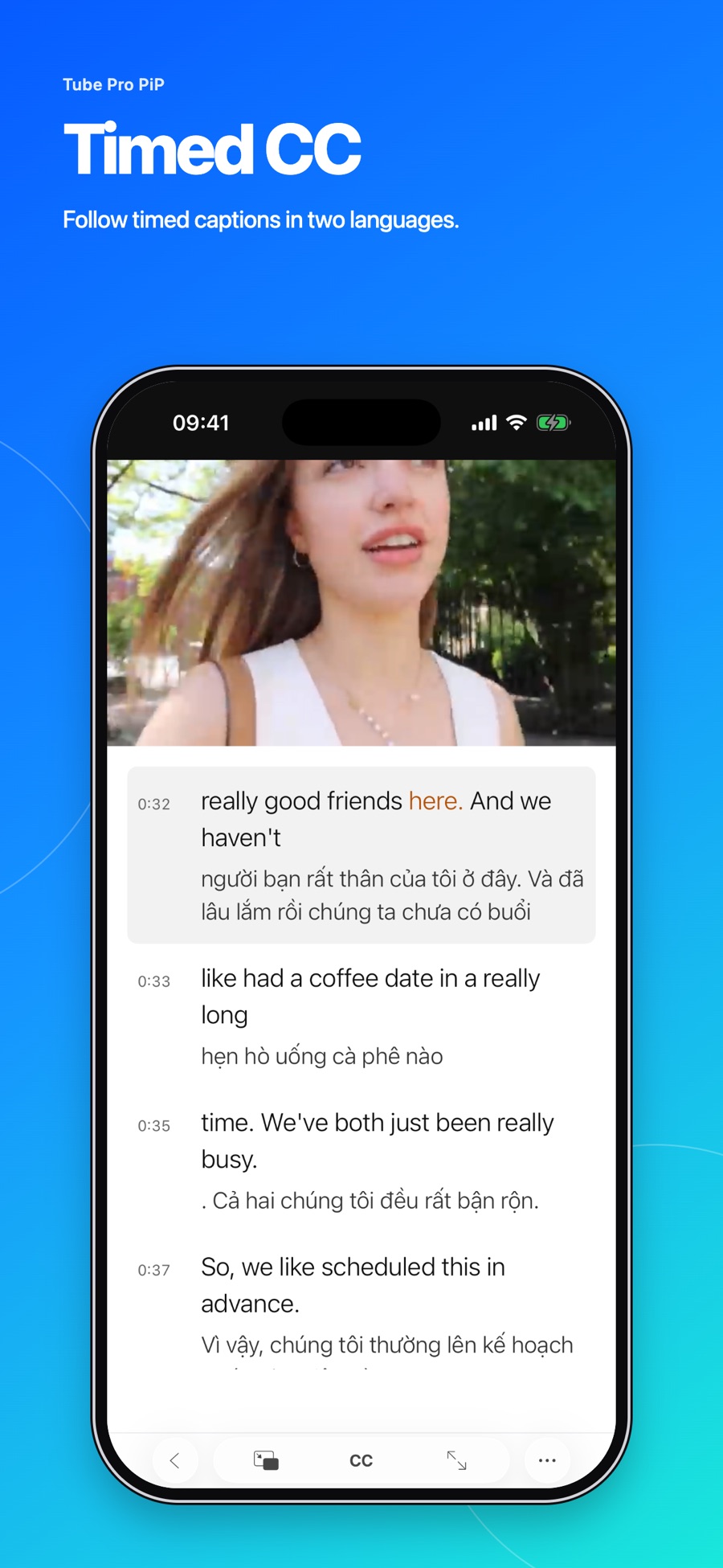
For additional caption tools on iPhone and iPad, Tube Pro PiP displays one or two available caption languages and lets you tap a transcript line to replay that moment. Track availability and word-level timing vary by video. See the bilingual-caption setup guide for the app’s own controls.
Auto-CC account settings: manage caption defaults
The reference labels this section “Disable Captions Permanently in Account Settings” and shows YouTube Settings → Playback and Performance, with two account-default switches:
- Always show captions: automatically display captions whenever available for videos you play.
- Include auto-generated captions: include automatically generated subtitles when manual captions have not been uploaded.
Use the simulator’s switches to practice those choices. They change only the mockup and do not save anything to a YouTube account. The desktop menu and availability of these options can change; this is not a promise that turning a switch off permanently prevents every device from showing captions.
For iPhone/iPad defaults, check iOS Settings → Accessibility → Subtitles & Captioning → Closed Captions + SDH. YouTube also documents a separate Show when muted option in the mobile captions menu. Check that setting if captions return when the device is muted.
Hardcoded captions: when a creator burns subtitles directly into the video footage, they become part of the image. YouTube’s CC setting cannot hide them.
Frequently asked questions
Why do captions keep turning back on automatically?
Caption defaults, device accessibility settings, or the mobile “Show when muted” option may be involved. The reference suggests disabling “Always show captions” under Playback and Performance when that desktop option is present. Check your actual device’s controls rather than assuming one account switch governs every platform.
What is the keyboard shortcut for YouTube CC?
On desktop, press C while the video player has focus to turn available captions on or off. You can practice this in the desktop simulator. In its mobile tab, C applies to the mobile mockup when that player has focus.
Can I translate captions into another language?
When offered, open Settings → Subtitles/CC → Auto-translate, then select a language. Available caption tracks and translation options depend on the video and platform. The simulator’s language selector contains prepared sample lines rather than a translation service.
Why can’t I turn off subtitles on some videos?
The creator may have permanently rendered subtitles into the footage, also called hard-subbing or open captions. Because those words are part of the picture itself, turning YouTube CC off cannot remove them.
Sources and next steps
This independent instructional resource adapts the full YouTube CC Master Guide & Interactive Simulator into Tube Pro PiP’s Astro blog. Consult YouTube’s current computer caption guide and iPhone/iPad caption guide for real settings. Use the simulator tabs to revisit desktop, mobile, and account settings, or choose Reset demo to restore its initial state.