Ad blocking
YouTube Ad Blocker for Chrome: Tube Pro PiP (11/2026)
Use Tube Pro PiP's YouTube ad blocker Chrome extension with PiP and dual subtitles. Compare the desktop extension with the iPhone/iPad app and learn setup steps.

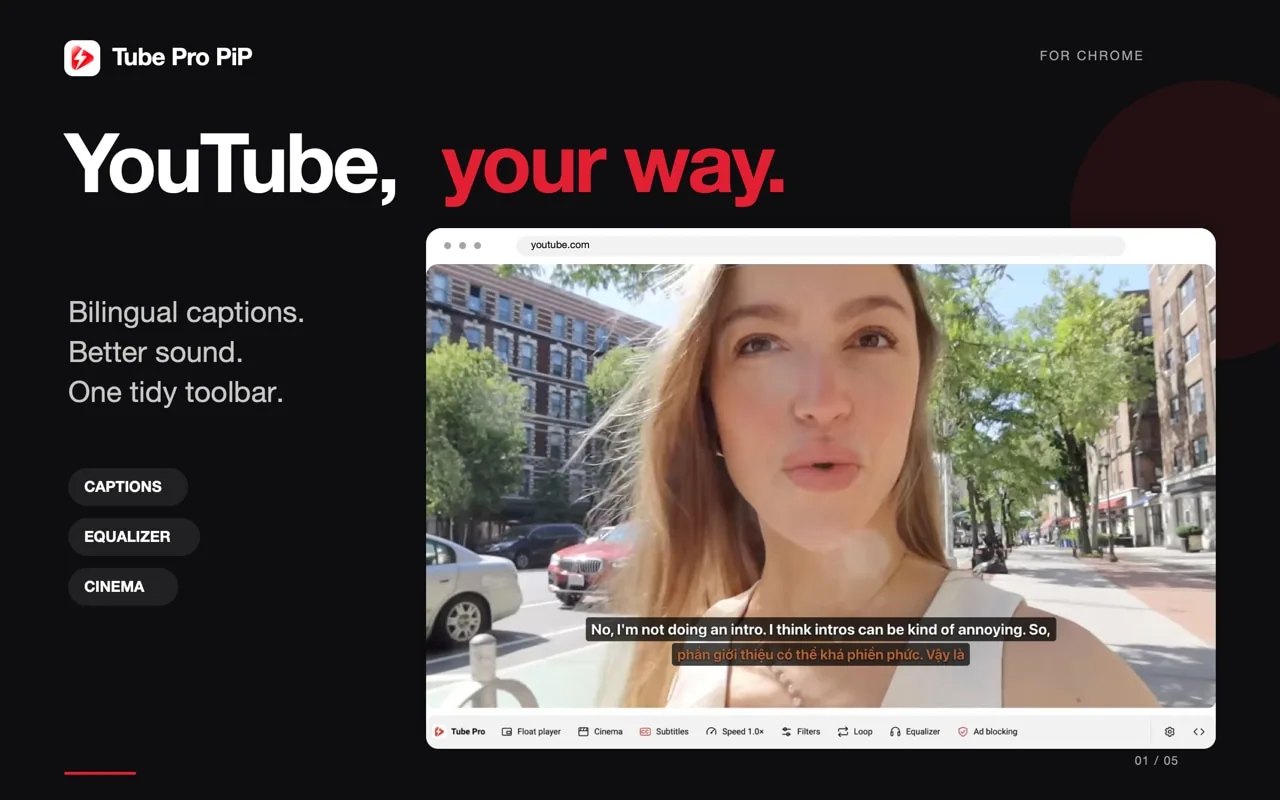
For a YouTube ad blocker on Chrome, Tube Pro PiP combines a built-in ad-blocking toggle with Picture in Picture and dual subtitles. Install the extension for YouTube on your computer. On iPhone or iPad, choose the separate Tube Pro PiP app.
The useful starting point is your viewing setup: watching youtube.com in desktop Chrome and listening on a locked iPhone need different tools. This guide explains the two versions and the controls their official store listings describe.
Choose the best YouTube ad blocker for your setup
When comparing options in 2026, check three things: the device it supports, the controls it provides, and its stated limits. A promise that every ad will disappear forever does not tell you how an extension behaves after YouTube changes.
| Where you watch | Tube Pro PiP option | What to expect |
|---|---|---|
| YouTube in desktop Chrome | Chrome Web Store extension | Ad-blocking toggle, PiP, dual subtitles and desktop playback controls |
| Supported videos on iPhone or iPad | App Store app | Ad blocking, background playback and PiP, plus available caption tools |
| The official YouTube mobile app | A separate player environment | Installing the Chrome extension does not add its controls to that app |
Choose the extension when you want controls on the YouTube page you already use. Choose the iPhone/iPad app when your priority is a mobile player with supported background and Lock Screen playback.
Install the YouTube ad blocker Chrome extension
- On your computer, open the Tube Pro PiP Chrome Web Store page.
- Select Add to Chrome, review the requested permissions and confirm Add extension.
- Open a YouTube video in Chrome.
- Find the Tube Pro PiP toolbar below the player and use its ad-blocking toggle.
The toolbar location and toggle are described in the extension’s own listing. Google’s extension installation guide explains the Chrome confirmation steps. A work or school browser may have installation restrictions.
The extension is free, and its listing says no Tube Pro account is required. Preferences are stored locally. That describes preference storage, not an absence of website access; the Web Store page contains the extension’s permission and data disclosures.
Keep floating video and captions in the same workflow
Ad blocking is one part of the extension. Picture in Picture lets a video stay visible while you browse another tab or work in another app. Its caption tools can show an original language and a translation together when the required tracks are available.
For example, while following a tutorial, you might keep the video visible and read both caption languages. When timing or languages are the problem, use the YouTube dual-subtitle guide to check the difference between translation and simultaneous display.
The listing also describes speed adjustment, an audio equalizer, cinema mode, looping and configurable shortcuts. Choose the controls you need for that session; their presence is not a claim that the extension improves every video’s audio, captions or compatibility.
Use Tube Pro PiP on iPhone and iPad
For mobile viewing, download Tube Pro PiP from the App Store. Open supported videos inside that app to use ad blocking, background playback and Picture in Picture.
The app is free to use forever, with optional purchases to support development. Its mobile tools include available timed/bilingual captions and a Sleep Timer. Desktop controls such as the Chrome toolbar belong to the extension; do not expect the same interface on your phone.
If you want audio after locking your phone, follow the screen-off YouTube guide for iPhone. If you want to keep the picture visible while using another app, use the iPhone Picture in Picture guide.
If ads remain or playback is interrupted
Confirm that you are using the intended product: desktop Chrome with the extension, or the separate iPhone/iPad player. In Chrome, check that the extension is enabled and its ad-blocking toggle is on. Review its current store listing when you need update or compatibility information.
The extension explicitly notes that ad-blocking effectiveness can vary as YouTube changes. YouTube also documents possible playback interruptions when ad blockers are used, with instructions to allow ads or use YouTube Premium. A download page or a “best working” headline cannot establish permanent results.
Start with the version for your device, open a supported video and use the controls you need. The Chrome extension and iPhone/iPad app are two ways to use Tube Pro PiP; each applies to playback in its own supported environment.
What does adblocker yt mean?
It is shorthand for a YouTube ad blocker. Tube Pro PiP offers a Chrome extension with a built-in ad-blocking toggle for desktop YouTube, plus a separate iPhone/iPad player with ad blocking for supported content.
Is Tube Pro PiP a free YouTube ad blocker Chrome extension?
Yes. Its Chrome Web Store listing describes a free extension with built-in ad blocking, Picture in Picture, dual subtitles and other playback tools. No Tube Pro account is required. Effectiveness can change as YouTube changes.
Can the Chrome extension block ads in the YouTube iPhone app?
No. The extension is built for desktop YouTube in Chrome. On iPhone or iPad, use the separate Tube Pro PiP app and play supported videos there. It does not alter the official YouTube app.
Will any YouTube ad blocker keep working permanently?
Permanent effectiveness cannot be established from a store listing. Tube Pro PiP's listing says effectiveness may vary as YouTube changes. YouTube also says it may interrupt playback when ad blockers are used.