Background playback
How to Play YouTube With the Screen Off on iPhone
Want YouTube audio to keep playing when you lock your iPhone? Follow these background playback steps and check what to do when the sound stops.

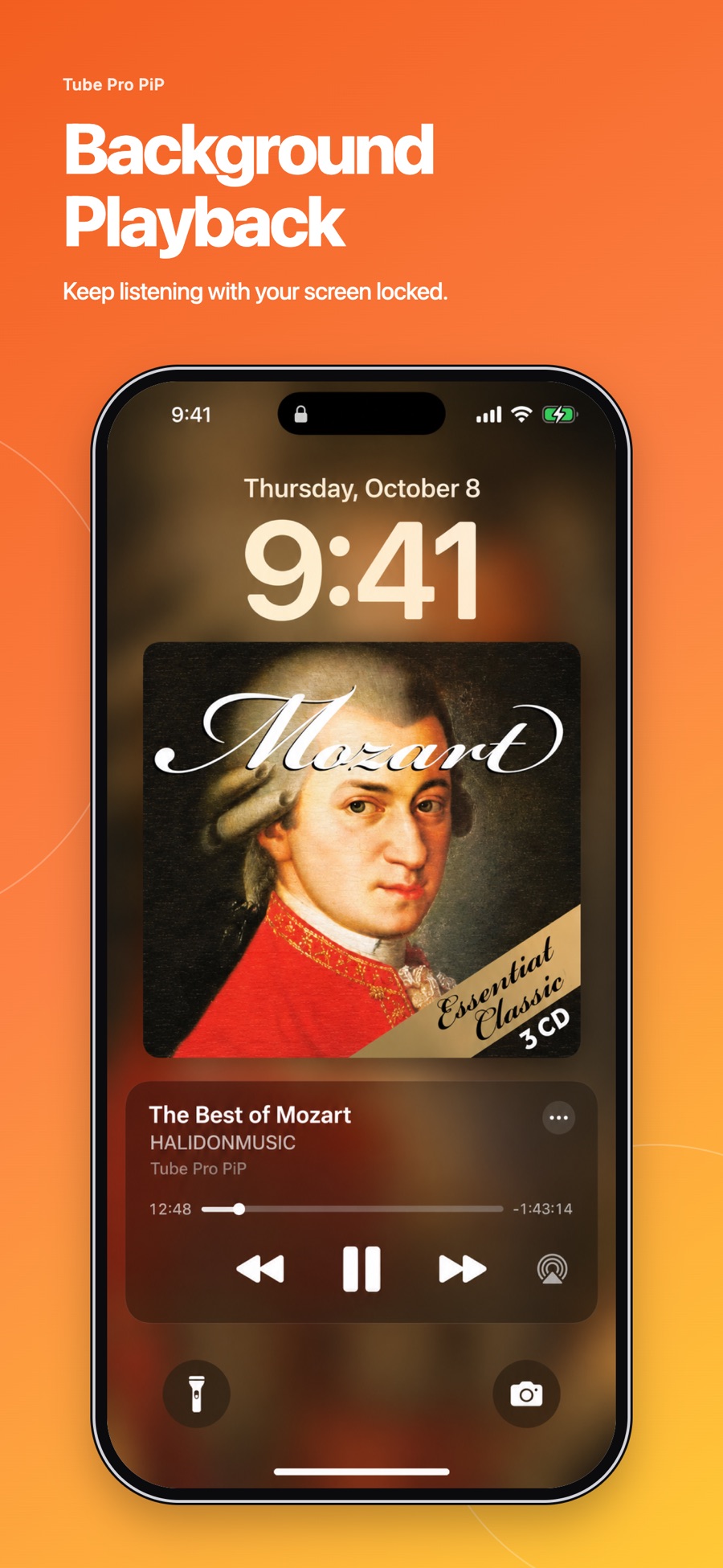
To play YouTube with the screen off on iPhone, you need a playback option that supports background audio. Start a supported video in Tube Pro PiP, let it begin playing, then press your iPhone’s side button to lock the screen. For compatible content, the audio continues; you can pause or resume from the Lock Screen.
The official YouTube app also offers screen-off listening through eligible paid membership benefits. Turning the brightness down or opening a floating video window is a different action from locking the phone.
This guide focuses on getting playback started and finding the cause when it stops. For listening ideas, saved videos and evening routines, see our background playback guide.
Play a video with the screen off using Tube Pro PiP
- Install or update Tube Pro PiP from the App Store. Check the listing for your device’s current compatibility.
- Open Tube Pro PiP and find the YouTube video you want to listen to. Start with an interview, talk or another video where the audio makes sense without the picture.
- Start playback and wait until you can hear the video. Keep the player open for this first check.
- Press the iPhone’s side button once to lock the screen. Listen to check whether the audio continues.
- If playback controls appear on the Lock Screen, use them to pause or resume. You do not need to reopen the video just to pause it.
Tube Pro PiP’s App Store listing describes background and Lock Screen playback for supported content. Availability depends on the video, website and device. These steps are not a guarantee that every YouTube video will work.
For a useful comparison, repeat the same steps with a different video. If one keeps playing and the other stops, the problem may be specific to that content rather than your iPhone.
Use the official YouTube app with eligible background play
If you already have YouTube Premium, sign in to the account with the active membership. In YouTube’s settings, look for Background & Downloads → Background Play → Always on, then start a regular video and lock the screen. Menu wording can vary by app version and language.
YouTube’s iPhone help documents this feature and its settings. If you select the headphones or external speakers option, background play depends on a connected audio output. The Shorts player does not support background play.
YouTube has also announced background play for most videos on Premium Lite, with exclusions including music content and Shorts. Check your plan and regional availability rather than assuming every paid plan includes the same benefits.
If YouTube stops when you lock your iPhone
Notice when the sound stops. That gives you a better starting point than changing unrelated settings.
| What happens | What to check next |
|---|---|
| Audio stops immediately on screen lock | Confirm that your chosen player supports background audio for this video. In the official YouTube app, check the membership account and Background Play setting. |
| Audio continues, then stops later | Check your connection and whether a Sleep Timer has finished. If another app starts playing sound, it may interrupt the current audio. |
| One video stops but another works | Try the original video again in the regular player. Content or website restrictions may affect background playback. |
| The video appears to be playing but you hear nothing | Check volume and the selected audio output, especially if Bluetooth headphones or a speaker were connected. |
If several videos fail, update the player, close and reopen it, then test again. If needed, restart the iPhone. Record the video link, app version, and whether playback stops immediately or after a delay when reporting a problem. YouTube’s background-play troubleshooting guide covers its official app.
Screen-off audio, Picture in Picture and offline playback
Screen-off listening keeps the sound going while your iPhone is locked. Picture in Picture keeps a small video visible while you use other apps with the screen on. A floating video window alone does not establish that audio will continue after screen lock. See our iPhone PiP guide when you want the picture to stay visible.
Background playback also does not mean offline playback. You still need a connection for an online stream. Locking the screen does not download the video, remove playback restrictions or promise a particular battery saving.
Quick questions before you start listening
Can I listen without a YouTube Premium membership?
Tube Pro PiP advertises background playback for supported videos in its own player. That does not unlock Premium benefits inside the official YouTube app. Check the current App Store listing and test the content you actually want to play.
Will a Safari desktop-site trick always work?
No universal result is promised here. Browser behavior can change with the website and iOS version. This guide does not treat a desktop-site workaround as a dependable screen-off playback setting.
Should I use a Sleep Timer at night?
If you want audio to stop after a set time, Tube Pro PiP lists 5, 15, 30 and 60 minute presets and a custom duration. A timer ending is an expected pause, so check it before diagnosing a playback fault.
Start with one video and one lock-screen test. If the sound continues, you have the behavior you need. If it stops, use the symptom table above to narrow down the cause.