Practical guides
How to Set a YouTube Sleep Timer on iPhone
Set a YouTube sleep timer on iPhone with the player menu or Clock app. Learn how to stop playback automatically and what to check if the timer is missing.

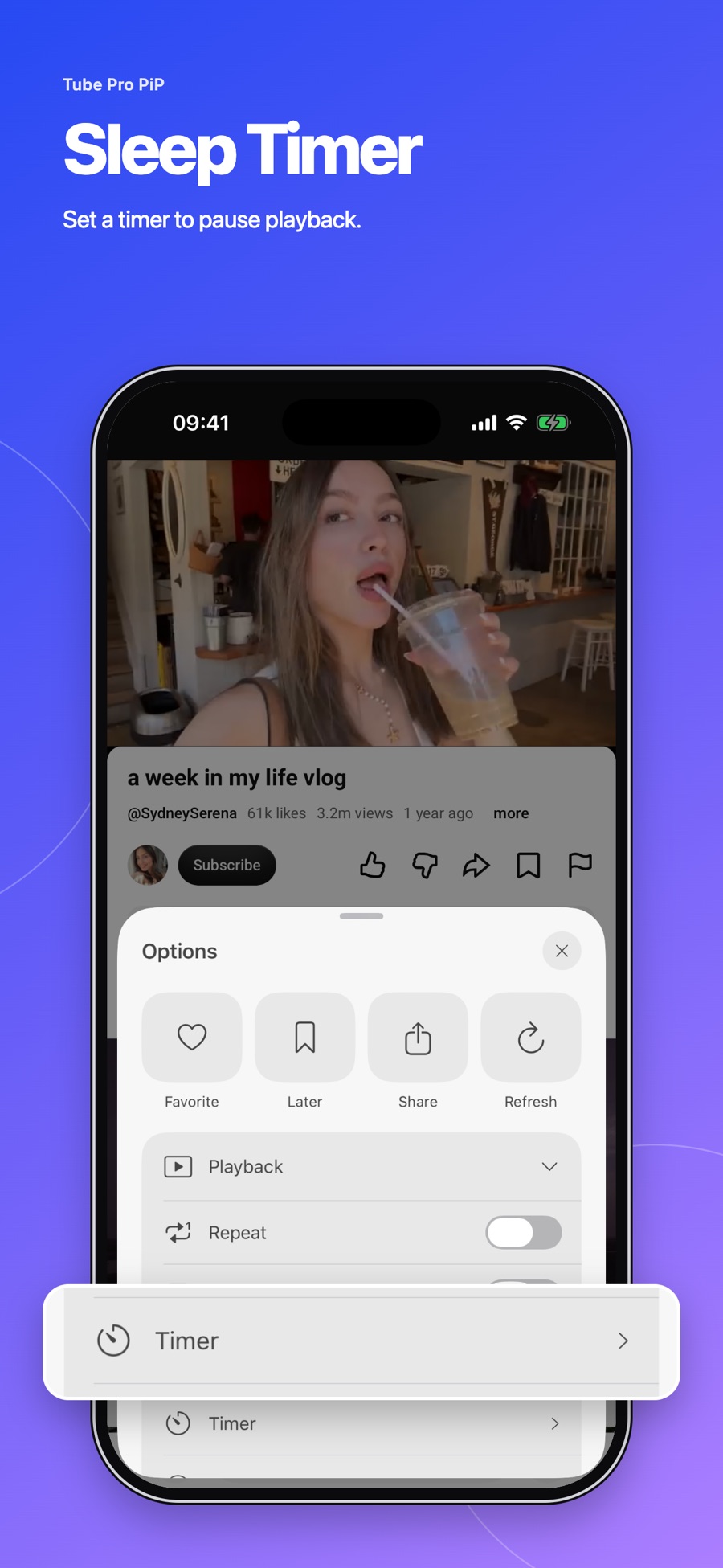
To set a YouTube sleep timer on iPhone, open a video, tap Settings → Sleep timer, and choose a duration. The video pauses when the timer ends.
If you watch in Tube Pro PiP, use its built-in Sleep Timer instead. The app is a YouTube player for iPhone and iPad with ad blocking, background playback and Picture in Picture for supported content. Its timer offers 5, 15, 30 and 60 minutes, plus a custom duration.
Set a sleep timer in YouTube
- Play the video you want to watch.
- Tap the video to show its controls.
- Open Settings → Sleep timer.
- Select how long the video should play.
To change the duration, return to the same menu. YouTube shows a silent notification when playback pauses and lets you reset the timer to continue watching. See YouTube’s iPhone instructions.
Use the iPhone Clock timer
If the player has no timer option, try the iPhone’s own stop-playback control:
- Open Clock → Timers and set a duration.
- Tap When Timer Ends.
- Choose Stop Playing, then Set.
- Tap Start and return to your video.
An ordinary timer sound will only alert you. Select Stop Playing to stop media. Apple explains this in its Clock guide. Check this setting before your next cooking timer: select a sound again when you need an audible alert.
Use Sleep Timer in Tube Pro PiP
Open a supported video in the app, find Sleep Timer, and choose a preset or custom duration. Start with a short test to confirm playback pauses before relying on a longer session.
Want to listen with the phone locked? First check screen-off playback on iPhone, then set your timer. Playback availability depends on the content and device.
If the timer does not work
- Missing option: look in the video player’s settings, update the app, or try Clock.
- Playback stops early: check for another active timer or a background-playback interruption.
- Sound continues: confirm Clock uses Stop Playing and test directly on the iPhone before using an external speaker.
Use one timer during troubleshooting so you can identify which setting stopped playback.
Frequently asked questions
Does the timer turn off my iPhone?
No. It pauses playback or stops media. It does not shut down the phone.
Is a sleep timer the same as a bedtime reminder?
No. A sleep timer pauses after a duration. A bedtime reminder prompts you at a chosen time.
Does a timer enable background playback?
No. Check that your video supports background listening first. The timer only sets when playback ends.