Playback troubleshooting
YouTube Picture in Picture Not Working on iPhone? Fixes
YouTube Picture in Picture not working on iPhone? Check both PiP settings, video eligibility and hidden windows, then narrow down app or playback problems.

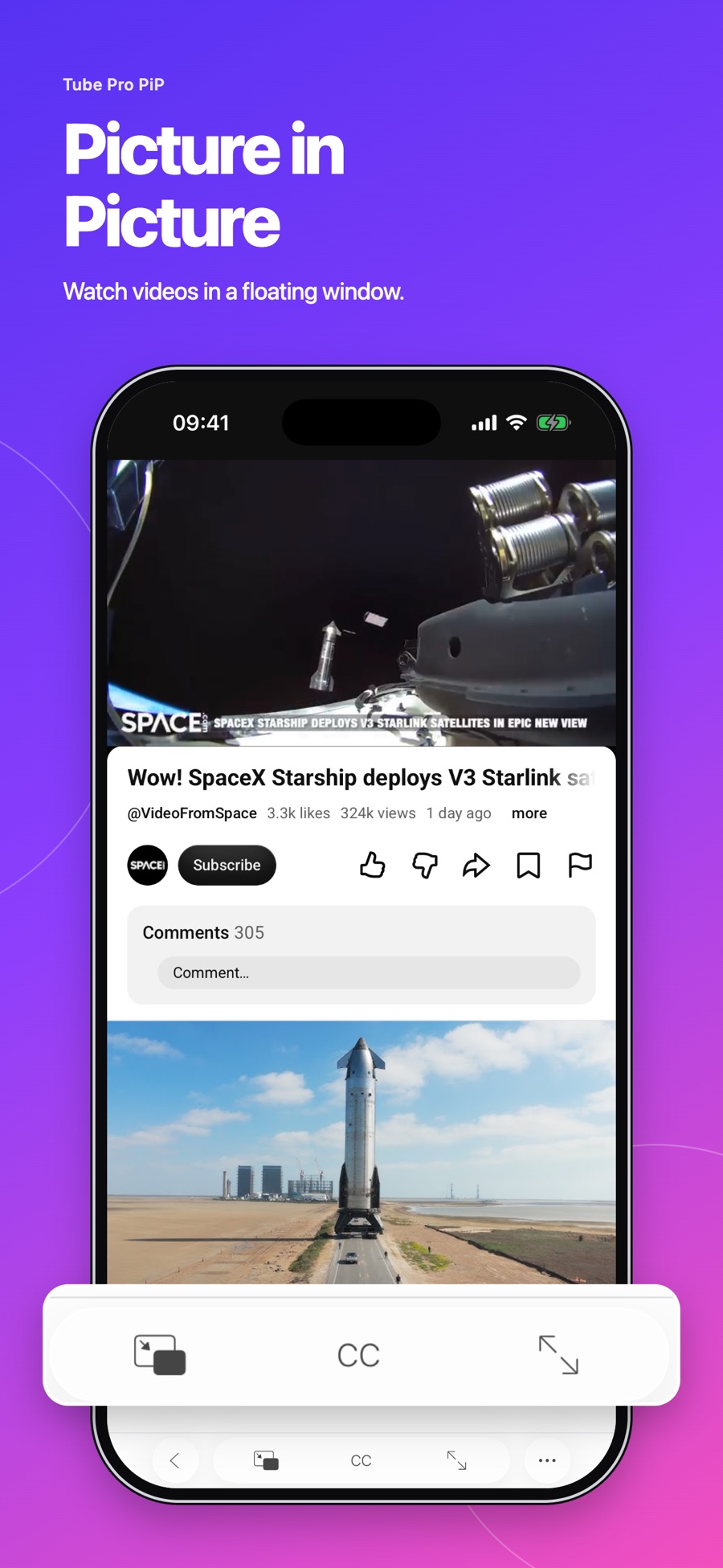
If YouTube Picture in Picture is not working on iPhone, check PiP in both iPhone Settings and YouTube, then test a non-music video while returning to the Home Screen. This separates a disabled setting from a video restriction.
For supported videos, Tube Pro PiP also offers a floating player. It is a YouTube player for iPhone and iPad with ad blocking, background playback and Picture in Picture. Use the checks below for the official YouTube app; using a separate player does not change your YouTube account benefits.
Turn on both PiP settings
- On iPhone, open Settings → General → Picture in Picture.
- Turn on Start PiP Automatically.
- Open YouTube → Settings → Playback.
- Turn on Picture-in-Picture.
- Start a video, leave it playing, and swipe up to return Home.
YouTube’s current iPhone PiP instructions require iOS 15 or later. Menu wording can differ by version; update the app if your controls look different.
Test a non-music video
Try a spoken tutorial or interview before testing a song. YouTube’s help says music content requires YouTube Premium for PiP. That category can include official music videos, Art Tracks, children’s songs and song covers.
If one video works and another fails with the same settings, check content eligibility before changing more settings. Do not buy a plan solely because one video failed to open a floating window.
Match the fix to the symptom
| What happens | What to check |
|---|---|
| No floating window appears | Enable both PiP switches and leave while the video is playing. |
| Only one video fails | Compare with a non-music video and review eligibility. |
| The window opens but playback stalls | Check whether the video plays normally inside the app. |
| Audio stops when you lock the phone | Check background playback separately. |
If eligible videos still fail, reopen YouTube, update it and restart the iPhone. Retest the same video after each change. These are diagnostic steps, not guaranteed fixes.
Picture in Picture in Tube Pro PiP
Open a supported video and use the player’s PiP control. Confirm the floating window appears before switching to another app. Our Picture in Picture setup guide explains the app workflow.
For listening with no visible video, follow the screen-off playback guide instead.
Frequently asked questions
Do all YouTube videos support PiP without Premium?
No. YouTube identifies music content as requiring Premium. Check current eligibility for your video and account.
Why does PiP stop when I lock my iPhone?
PiP keeps video visible over other apps. Screen-off audio depends on background playback support, which is a separate feature.
Will reinstalling YouTube fix PiP?
It is not a guaranteed fix. Check both settings and a second video first; reinstalling cannot remove a content restriction.