Audio equalizer
Free YouTube Equalizer for Chrome: Tube Pro PiP (11/2026)
Adjust YouTube audio while watching with Tube Pro PiP's free Chrome equalizer. Use five bands, nine presets, live spectrum and custom controls, including in PiP.

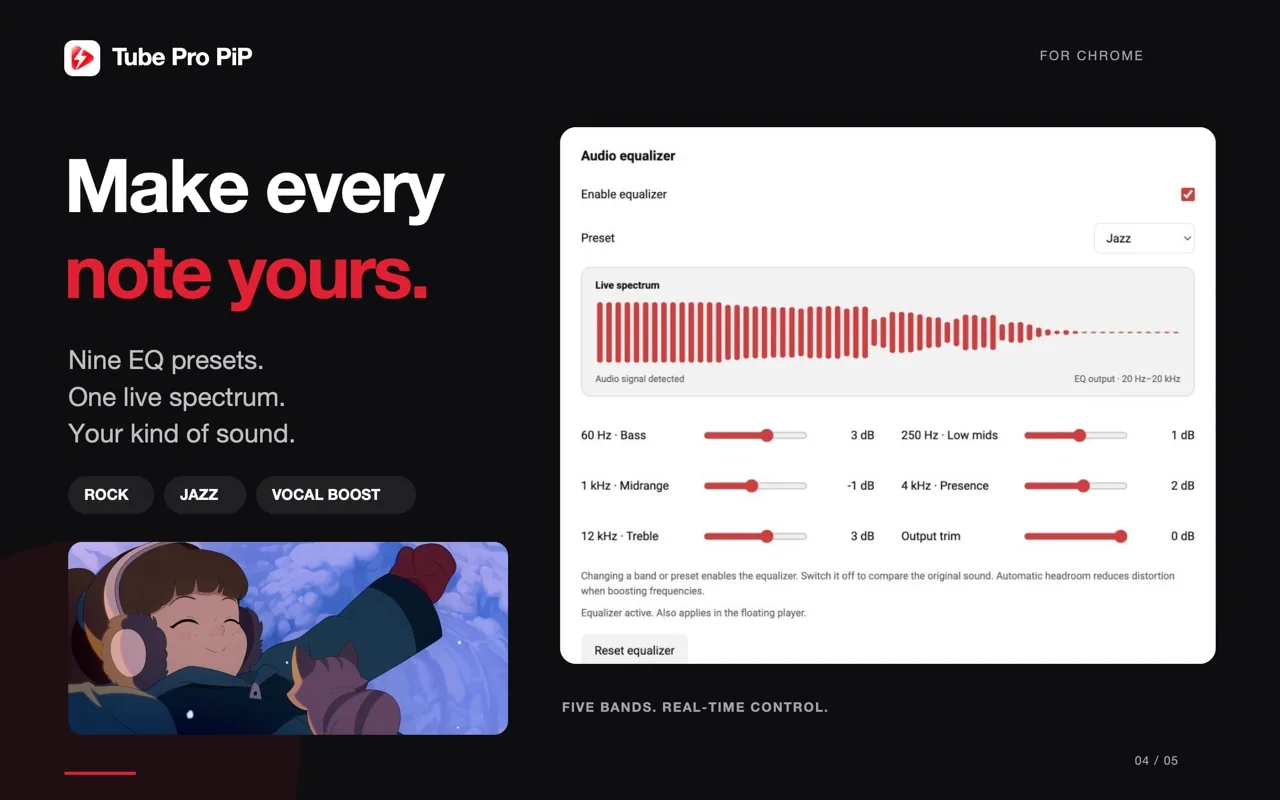
Tube Pro PiP is a free YouTube equalizer for Chrome that lets you adjust the sound while keeping your video playing. Choose from nine presets, tune five frequency bands, and watch the live spectrum as you listen. The equalizer also applies in the extension’s floating player.
Add Tube Pro PiP from the Chrome Web Store to put sound controls alongside your YouTube playback tools. No separate Tube Pro account is required.
Adjust YouTube audio from the video toolbar
You might want a different balance for a spoken interview than for a music video. An equalizer gives you controls for that balance while you listen to the same recording.
Tube Pro PiP brings those controls into the YouTube workflow: open Equalizer from the toolbar below the player, then use a preset or make your own adjustments. For the other desktop features and installation overview, see the Tube Pro PiP Chrome extension guide.
Start with a preset, then make it yours
- Install the extension in desktop Chrome and open a YouTube video.
- Open Equalizer in the Tube Pro PiP toolbar.
- Turn Enable equalizer on.
- Choose a preset, such as Rock, Pop, Jazz or Vocal boost, or adjust individual bands.
- Switch the equalizer off and on to compare your choice with the original sound.
The extension lists nine presets. Use a preset as a starting point for your headphones, speakers and recording. For spoken content, try the voice-focused option and compare it with the original before deciding which you prefer.
These are listening choices, not a universal “best settings” recipe. A setting that suits one video may be too strong for another.
Tune five frequency bands
The official equalizer interface labels the controls as follows:
| Band | Interface label | What to listen for when adjusting |
|---|---|---|
| 60 Hz | Bass | Low-frequency weight |
| 250 Hz | Low mids | Body and warmth |
| 1 kHz | Midrange | The middle of the sound |
| 4 kHz | Presence | Definition around voices and instruments |
| 12 kHz | Treble | High-frequency brightness |
Move one control a little at a time, listen to the same short passage, and compare. These descriptions help identify what changed; they do not promise to recover detail absent from the recording.
Output trim adjusts the resulting level. Keep comparison levels similar so you can judge the frequency balance, not just which version sounds louder. The interface also provides Reset equalizer for a fresh start and describes automatic headroom when boosting frequencies.
Follow the live spectrum and keep a floating video
The spectrum provides visual feedback while audio plays. Use your ears to choose a balance you like; the bars are feedback, not a sound-quality score.
The official feature image states that EQ also applies in the floating player. You can keep a tutorial or video nearby while using another app, with the sound balance you selected. Pair that with available caption tools when useful; our YouTube dual-subtitle guide explains track availability and two-language display.
Tube Pro PiP also has a separate iPhone and iPad app with ad blocking, background playback and Picture in Picture for supported content. The EQ controls in this article belong to the desktop Chrome extension. For the mobile floating-window workflow, use the iPhone PiP guide.
Add the free Chrome extension
Get Tube Pro PiP for Chrome, open a video and select Equalizer below the player. Start with a preset, adjust a band if needed, then compare with EQ off.
If you hear no change, check that the equalizer is enabled and that the video is actually playing audio. Google documents the ordinary Chrome installation and extension controls. Use the current store listing for supported features and updates.
Is the Tube Pro PiP YouTube equalizer free?
Yes. The Chrome Web Store lists Tube Pro PiP as a free extension with a five-band audio equalizer, nine presets and custom controls. No Tube Pro account is required.
Can I adjust audio while the YouTube video keeps playing?
Yes. Open Equalizer in the toolbar below the video, enable it, and choose a preset or adjust the bands while listening. The live spectrum shows the audio response.
Does the equalizer also apply in the floating player?
The extension's official equalizer graphic states that the equalizer also applies in the floating player. This lets you use its sound adjustments with the desktop floating-video workflow.
Is this the same as raising YouTube volume?
No. Volume changes the overall level. An equalizer changes the balance of frequency ranges, such as bass, midrange and treble. Compare settings at a similar volume to judge the balance you prefer.