Chrome Picture in Picture
How to Use YouTube Picture in Picture on Chrome (11/2026)
Keep YouTube visible across Chrome tabs. Compare Miniplayer and Picture in Picture, use the free Tube Pro PiP extension, and keep supported subtitles nearby.

Feature sources checked: · Chrome Web Store
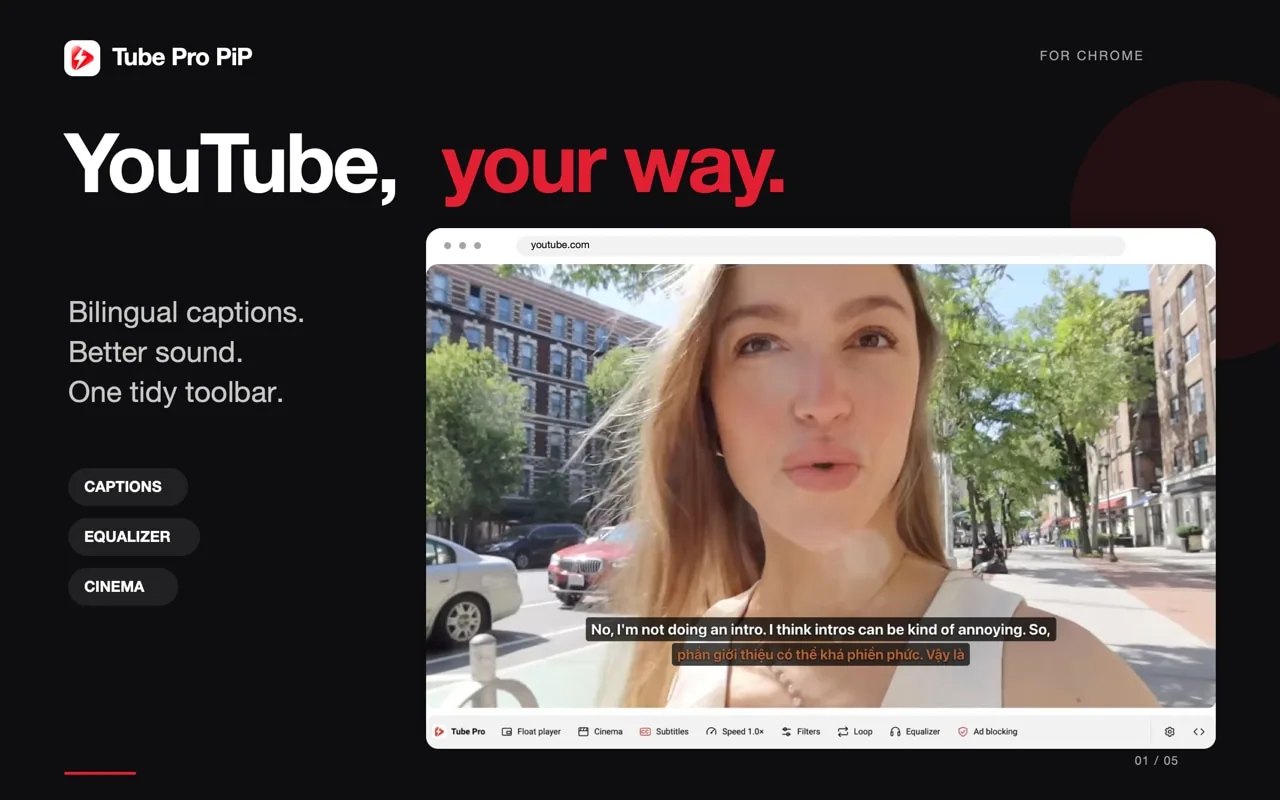
A YouTube video does not have to disappear when you switch tabs. Picture in Picture (PiP) opens the video in a small separate window, so you can follow a tutorial while reading its instructions or keep an interview nearby while taking notes.
For desktop YouTube, Tube Pro PiP offers a free floating player with playback controls and supported subtitles. This guide explains its setup alongside Chrome’s built-in option, so you can choose the controls you need.
YouTube Miniplayer vs Picture in Picture
A smaller video inside YouTube and a separate floating window solve different problems. YouTube’s Miniplayer documentation describes watching while browsing within YouTube. Chrome’s PiP is the option to consider when moving between tabs.
| Option | Where you keep watching | When to use it |
|---|---|---|
| YouTube Miniplayer | Inside YouTube | Browse another YouTube page while the video plays |
| Chrome Picture in Picture | A separate window across Chrome tabs | Keep a video beside another webpage |
| Tube Pro PiP floating player | A floating window across tabs or desktop apps | Use playback controls and supported subtitles together |
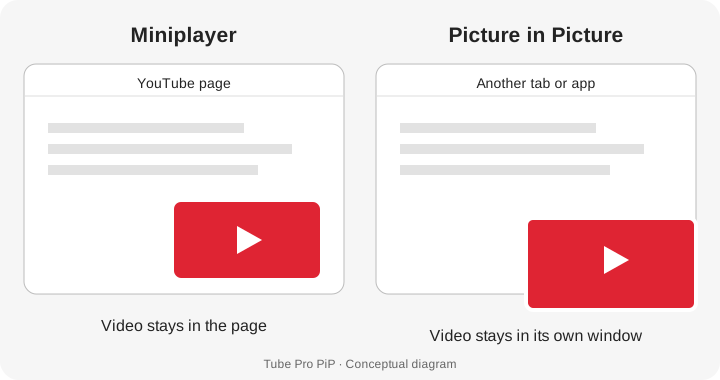
Diagram: where each player appears. This illustrates the difference; it is not a screenshot of either interface.
Open the free Tube Pro PiP floating player
The Chrome extension overview covers its wider feature set. To start with floating video:
- Open the Tube Pro PiP listing in the Chrome Web Store and choose Add to Chrome. Review the requested permissions before confirming.
- Open a regular YouTube video in desktop Chrome and start playback.
- Find the Tube Pro PiP toolbar below the video.
- Select Float player, the label shown in the extension’s official toolbar graphic.
- Move the floating window to a convenient place, then switch to the page or app you want to use.
Keep the source YouTube tab open. Closing the source removes the playback page; a floating window is not a saved or downloaded copy of the video. Google’s extension installation guide explains the normal installation and management controls.
Use Chrome’s built-in PiP for a simple video window
For a basic window without adding an extension, start a video, open Media control at the top right of Chrome, and choose Enter picture-in-picture. Google documents this route in its Chrome media-control guide. Drag the window to reposition it.
Choose the extension when you want its documented floating-player controls and caption tools together. The native Chrome route is also useful when checking whether a problem affects the extension or video playback more generally.
Keep supported subtitles and other controls nearby
Tube Pro PiP’s store listing describes playback controls and supported subtitles inside the floating player. Select the caption language you need; two-language display depends on available original and translated tracks. Our YouTube dual-subtitle guide explains those limits.
If you also want to adjust the sound balance, the Chrome equalizer guide covers the extension’s separate five-band controls. Start with a balance you prefer and compare it with the original audio.
On mobile, the separate Tube Pro PiP iPhone and iPad app provides ad blocking, background playback and PiP for supported content. Use its own instructions when watching on those devices; this article’s toolbar steps are for desktop Chrome.
If the floating player does not appear
| What you see | What to check |
|---|---|
| No Tube Pro PiP toolbar | Confirm the extension is enabled and open a regular YouTube watch page; reload it after installation |
| A small video that stays inside YouTube | Use Float player or Chrome’s Enter picture-in-picture, rather than the in-page Miniplayer |
| Video appears, but a subtitle language is missing | Check the video’s available tracks and the extension’s caption selection |
| Playback stops altogether | Return to the source tab and check whether the video is paused, ended or showing a playback error |
If needed, temporarily disable other video extensions one at a time to look for a conflict. On a managed computer, follow the administrator’s extension policy. Try one ordinary video first, then add captions or sound adjustments after the basic window works.
Does YouTube Miniplayer work outside its tab?
YouTube documents Miniplayer for browsing within YouTube. For a video window across Chrome tabs, use Picture in Picture.
Is Tube Pro PiP for Chrome free?
Yes. The Chrome Web Store lists Tube Pro PiP as a free desktop extension, with no Tube Pro account required.
Will every video show two subtitle languages in PiP?
No. The extension’s caption and translation features depend on available subtitle tracks. A missing track cannot be supplied merely by opening a floating window.
Can I use this Chrome extension inside the YouTube iPhone app?
The Chrome extension is built for desktop YouTube in Chrome. Tube Pro PiP has a separate iPhone and iPad app; installing the extension does not change the official YouTube iOS app.